Fixing Android Auto Display Glitches on Widescreen Vehicle Head Units
Per autoevolution, a firmware update corrects Android Auto malfunctions specific to widescreen vehicle displays.
Aldous Moorland·updated August 17, 2026
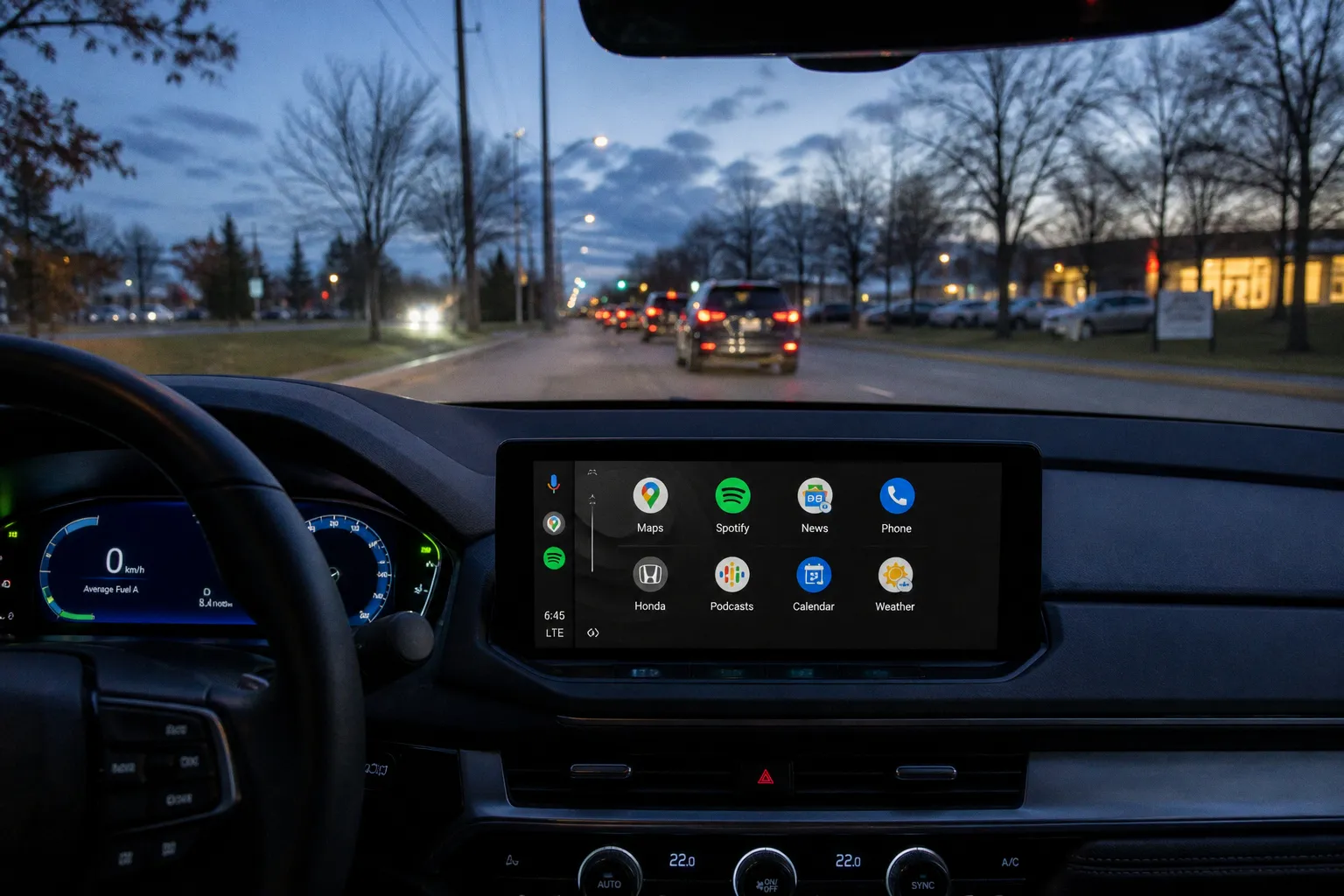
The companion Technobezz procedure outlines the broader recovery sequence applied when any phone, app, or security patch breaks the phone-to-car link — a fault class that surfaces routinely in imported vehicles after routine OS maintenance.
The Widescreen Fault Path
The autoevolution report identifies a firmware-level fix for Android Auto on wide-format screens. The fault presents as a non-launching or improperly scaled Android Auto session on the head unit. The correction is delivered through vehicle firmware, not through the phone. No specific build number, ECU identifier, or affected head unit model appears in the available evidence — only the headline. Supported Android Auto setups in 2026 require an Android 9.0 or newer phone, an active data plan, and a compatible vehicle or stereo. Android (Go edition) devices are excluded.
Standard Post-Update Recovery
The Technobezz sequence advances through fixed gates. Each gate clears a known failure mode introduced by an update.
- Force-restart the phone: hold Power for approximately 30 seconds until reboot completes.
- Update Android Auto via Google Play under Manage apps and device, then Updates available, then See details. Tap Update next to Android Auto or Update all.
- Apply the latest OS or security patch through Settings, then System, then Advanced, then System update. On some devices the path runs through Settings, then About phone, then Software update. Follow the path the device shows.
- For wired failures where the head unit stops recognizing the phone, swap to the OEM cable or a USB-IF-certified equivalent.
- For wireless failures, cycle Bluetooth, Wi-Fi, and Location state. Press and hold the steering-wheel voice command button to open the new-phone pairing menu, then complete the on-screen steps.
- Re-grant Android Auto permissions: Location, Nearby devices, Phone, Contacts, SMS, Microphone, Notifications. If Android Auto is hidden in the app drawer, tap See all apps, then Android Auto.
- Clear cache first. If the fault persists, return to Storage and cache and tap Clear storage or Clear data. Reconnect and complete setup again.
Wireless Android Auto requires a compatible phone running Android 11.0 or newer with 5 GHz Wi-Fi support, paired to a compatible wireless head unit.
Verification Baseline
The fix is confirmed when Android Auto launches without manual reconnection, the wide-format layout renders without cropping or scaling errors, and the connection holds across ignition cycles. If the fault persists after firmware application and the recovery sequence, the diagnostic path shifts to head unit firmware version verification and cable integrity testing — the two variables most often flagged as "no fault found" on dealer service tickets. APK downgrades are not recommended; Android 10 and newer phones carry Android Auto built in for head-unit use, distributed through Google Play.